---
title: "Part 5: Adding Install Code and Chat Volume"
slug: "part-5-adding-install-code-and-chat-volume"
updated: 2022-06-20T10:42:48Z
published: 2022-06-20T10:42:48Z
canonical: "developer.comm100.com/part-5-adding-install-code-and-chat-volume"
---
> ## Documentation Index
> Fetch the complete documentation index at: https://developer.comm100.com/llms.txt
> Use this file to discover all available pages before exploring further.
# Part 5: Adding Install Code and Chat Volume
## Introduction
In this article we will show you how to integrate the Control Panel's **installation code** page and the **chat volume** page into Vincall.
Integrate **installation code** page in Vincall: 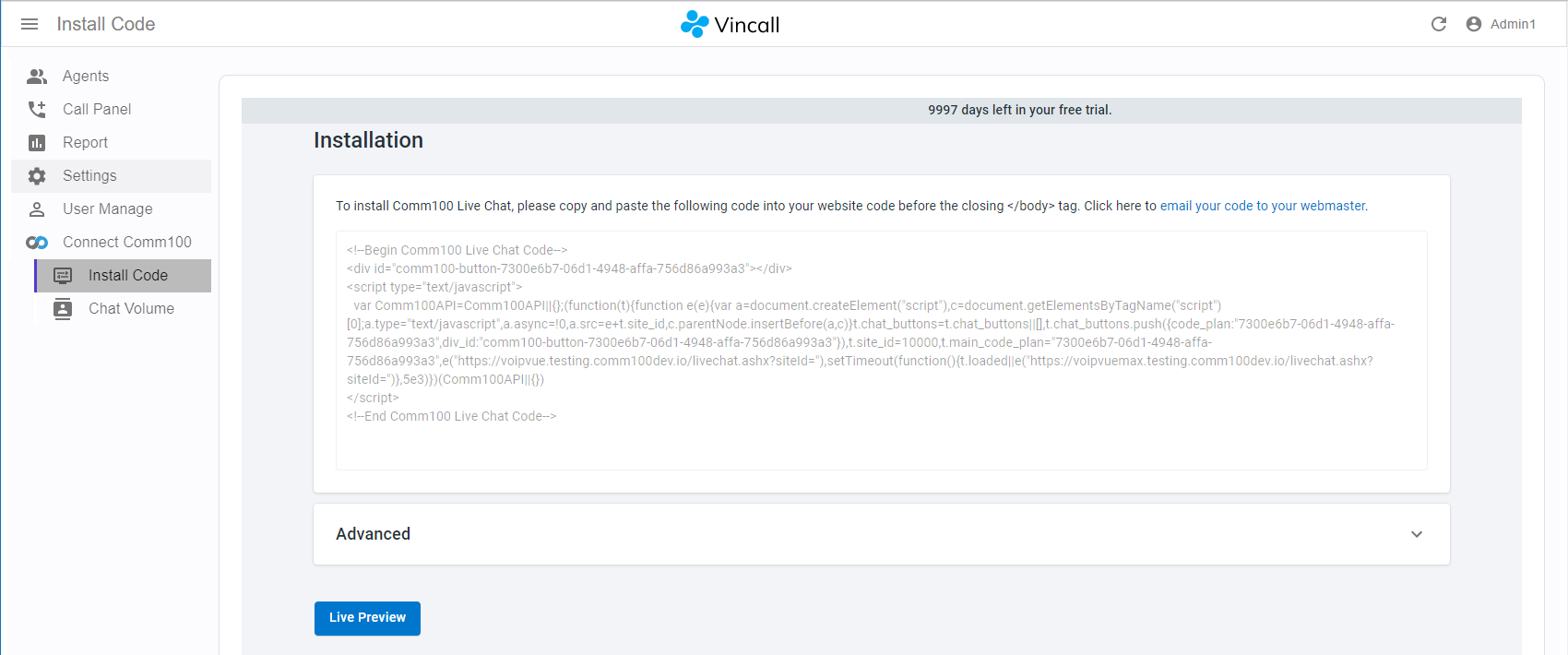
Integrate **chat volume** page in Vincall: 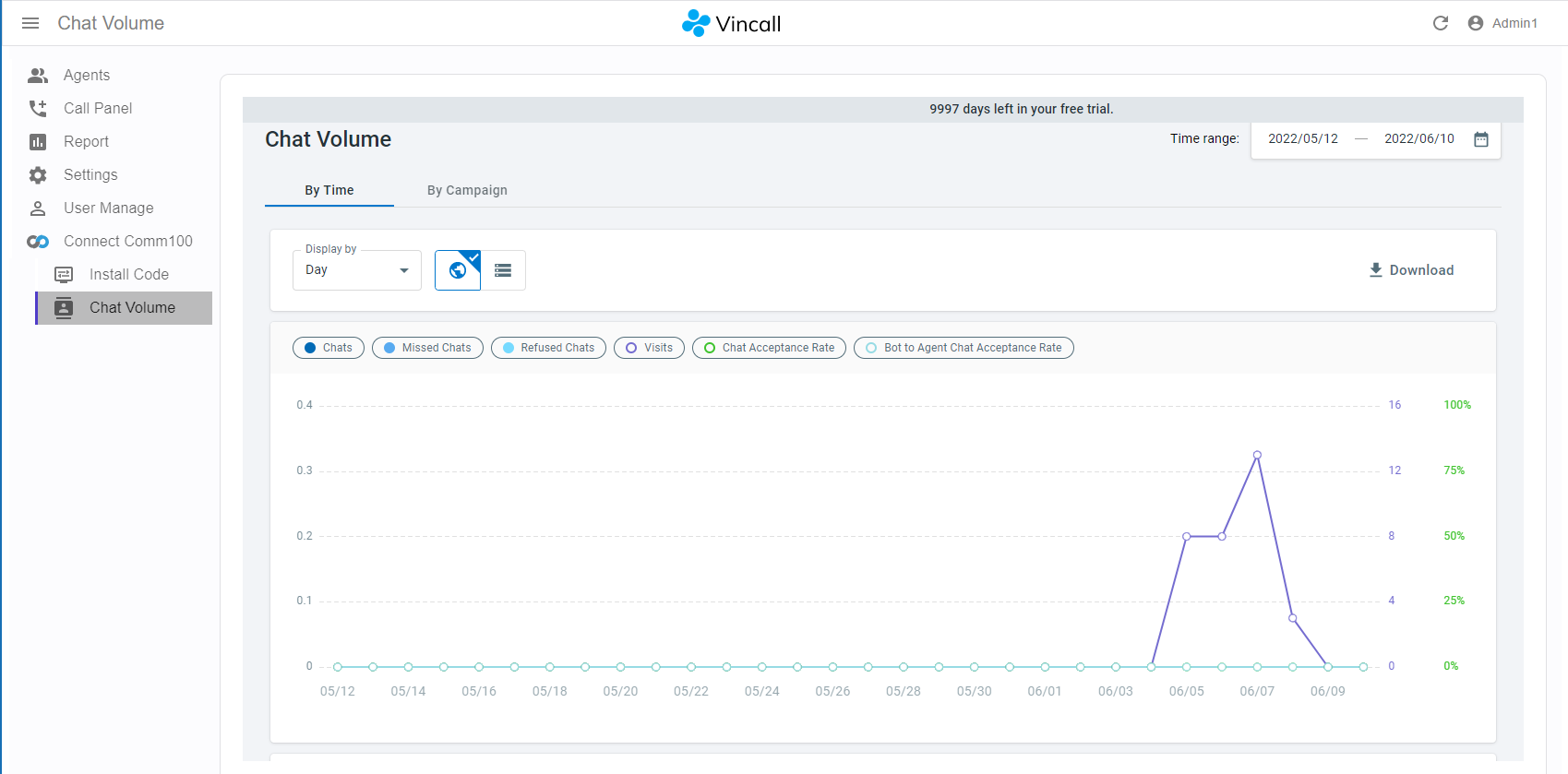
## Step-by-Step Instructions
We can embed the **Control Panel's** page into our own system via **Comm100 Embedded Client**. Let's step by step implement the integration of different pages into Vincall:
1. [Adding the New Page in Vincall](/docs/part-5-adding-install-code-and-chat-volume#adding-the-new-page-in-vincall)
2. [Embedding Comm100 Control Panel vir Embeddable SDK](/docs/part-5-adding-install-code-and-chat-volume#embedding-comm100-control-panel-vir-embeddable-sdk)
3. [Adding the Chat Volume Page](/docs/part-5-adding-install-code-and-chat-volume#adding-the-chat-volume-page)
### Adding the New Page in Vincall
1. Create new page **ControlPanel.tsx** (**src/Pages/Comm100/ControlPanel.tsx**):
```
export interface ControlPanelProps {
title: string;
}
export const ControlPanel = ({ title }: ControlPanelProps) => {
return (
);
};
```
1. Add new route in **src/App.tsx**:
```
}
/>
```
1. Add new menu in **src/Layout/Menu.tsx**:
```
}
/>
```
Launch the project, click on the **Install Code** menu or visit the `http://{youdomain}/#/installcode` URL to access the new page. But the page is still empty, we need to move on to load the **installation code** page in **src/Pages/Comm100/ControlPanel.tsx**.
### Embedding Comm100 Control Panel vir Embeddable SDK
We need to embed the following code into the new page to load the **installation code** page:
```
```
Load the above code in **src/Pages/Comm100/ControlPanel.tsx** page:
```
export interface ControlPanelProps {
title: string;
}
export const ControlPanel = ({ title }: ControlPanelProps) => {
useEffect(() => {
return install();
}, []);
return (
);
};
function install() {
let s2: any;
const s = document.createElement("script");
s.src = `https://static.comm100.io/sdk/comm100-embeddable-sdk-v1_0_0.js`;
s.async = true;
s.onload = () => {
s2 = document.createElement("script");
s2.innerHTML = `
var controlPanel = new EmbeddedControlPanel({
appId: "{YOUR_APP_ID}",
siteId: {YOUR_SITE_ID},
entry: "/livechat/campaign/installation/",
container: document.getElementById("comm100-controlpanel-installcode"),
});
controlPanel.init();
`;
document.body.appendChild(s2);
};
document.body.appendChild(s);
return () => {
if (s && s.parentNode) {
s.parentNode.removeChild(s);
}
if (s2 && s2.parentNode) {
s2.parentNode.removeChild(s2);
}
};
}
```
At this point, the **installation code** page has been embedded in Vincall. After [Connecting to a Comm100 account](/x2/docs/part-2-connecting-to-a-comm100-account) and [Mapping the Agents](/x2/docs/part-3-mapping-the-agents), **installation code** page will load successful in Vincall.
### Adding the Chat Volume Page
Next, we'll continue to add the **chat volume** page to Vincall. It's almost the same as adding the **Install Code** page. Just provide a different `entry` when initializing `EmbeddedControlPanel`:
```
```
1. Modify the `install` function (**src/Pages/Comm100/ControlPanel.tsx**) to embed a different **Control Panel** page. `install` function will receive two arguments:
- `entry`: The path to **Comm100** page
- `elementId`: Specifies the container element for the embedded page
```
function install(entry: string, elementId: string) {
let s2: any;
const s = document.createElement("script");
s.src = `https://static.comm100.io/sdk/comm100-embeddable-sdk-v1_0_0.js`;
s.async = true;
s.onload = () => {
s2 = document.createElement("script");
s2.innerHTML = `
var controlPanel = new EmbeddedControlPanel({
appId: "{YOUR_APP_ID}",
siteId: {YOUR_SITE_ID},
entry: "${entry}",
container: document.getElementById("${elementId}"),
});
controlPanel.init();
`;
document.body.appendChild(s2);
};
document.body.appendChild(s);
return () => {
if (s && s.parentNode) {
s.parentNode.removeChild(s);
}
if (s2 && s2.parentNode) {
s2.parentNode.removeChild(s2);
}
};
}
```
So **src/Pages/Comm100/ControlPanel.tsx** file should be updated like this:
```
export interface ControlPanelProps {
title: string;
entry: string; // The path to Comm100 page
elementId: string; // Specifies the container element for the embedded page
}
export const ControlPanel = ({
title,
entry,
elementId,
}: ControlPanelProps) => {
useEffect(() => {
return install(entry, elementId);
}, []);
return (
);
};
```
1. Pass `entry` and `elementId` to the `ControlPanel` component in **src/App.tsx** where the route is registered.
```
}
/>
}
/>
```
1. Add new menu in **src/Layout/Menu.tsx**:
```
```
## Next Steps
This way the **installation code** and the **chat volume** are successfully integrated into Vincall. You can integrate more Control Panel's pages into Vincall in the same way. Next, you can learn the interaction between Comm100 and Vincall in [Managing the Status Exclusion](/x2/docs/part-6-managing-the-status-exclusion).