---
title: "Embed Comm100 Agent Console"
slug: "embed-comm100-agent-console"
updated: 2024-11-04T03:27:26Z
published: 2024-11-04T03:27:26Z
canonical: "developer.comm100.com/embed-comm100-agent-console"
---
> ## Documentation Index
> Fetch the complete documentation index at: https://developer.comm100.com/llms.txt
> Use this file to discover all available pages before exploring further.
# Embed Comm100 Agent Console
## Introduction
The Comm100 Embedded Client allows you to embed Comm100 Agent Console into your web system. Comm100 Agent Console lives in an iframe, so it won't affect your web system. And Comm100 Agent Console provides a rich API that allows your system to interoperate with Comm100.
## Preparation
1. [Sign up](https://secure.comm100.com/siteregister.aspx) an account for free trial on Comm100 for Free Trial. Skip this step if you already have an account. Keep the email you used to sign up the account. It will be used as `agent_email` in following steps.
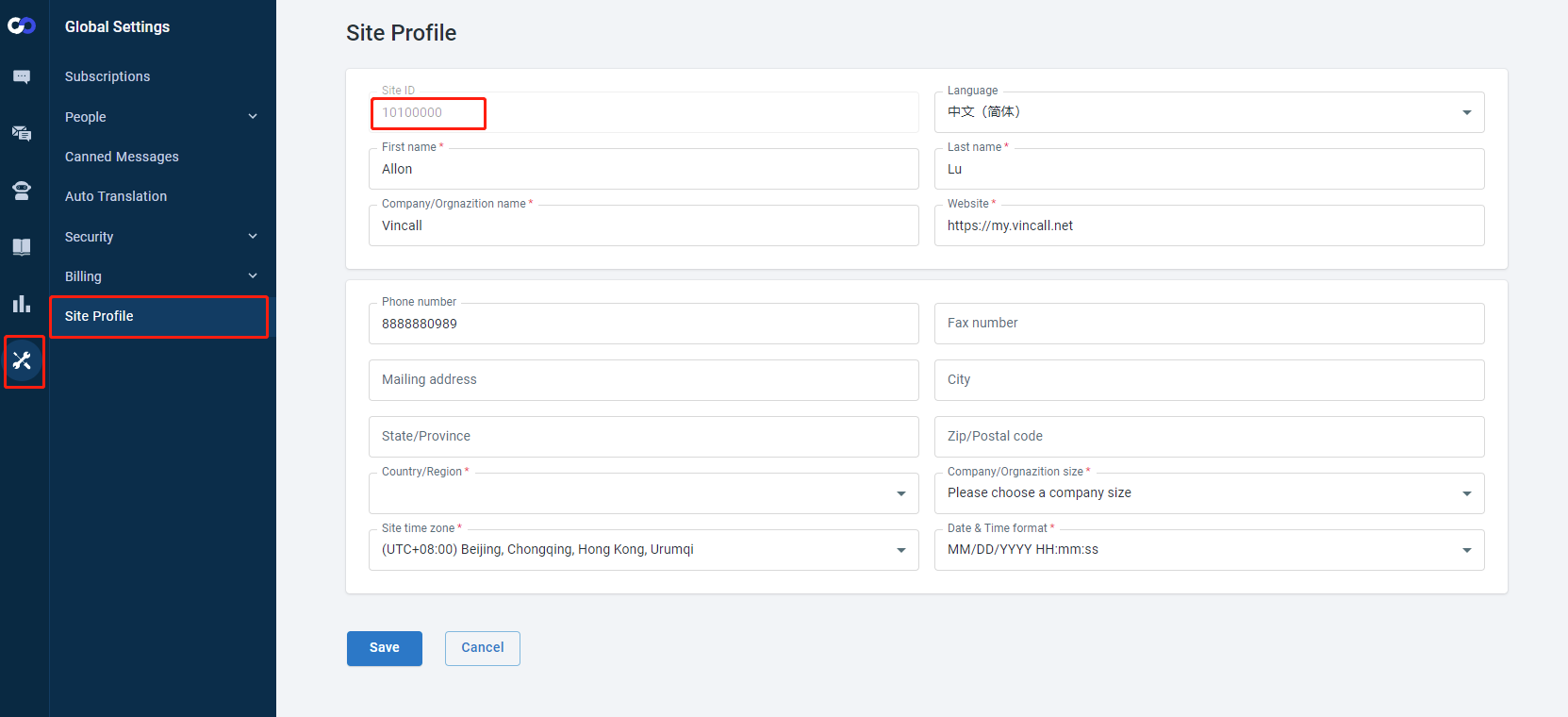
2. Log in to your Comm100 Control Panel, and navigate to **Global Settings > Site Profile** from the left navigation menu. Keep your site ID from the page. It will be used as `site_id` in following steps.
## How to embed Comm100 Agent Console?
1. Create a HTML file (example: iframe.html)
```
Hello World
```
1. Add a div in the body to place the Comm100 Agent Console Page, you need to set the `id` for this div, so that can find it by id:
```
```
1. To interact with the Comm100, the HTML file must import the Comm100 Embeddable SDK in a script tag:
```
```
1. After importing the SDK, you can instantiate the `EmbeddedAgentConsole` class to create Comm100 JavaScript API client:
```
var agentConsoleClient = new EmbeddedAgentConsole({
siteId: {site_id},
container: document.getElementById("comm100-agentconsole"),
});
```
1. After get the Comm100 Javascript API client, you can use the `agentConsoleClient.init()` method to initalize Comm100 Agent Console:
```
agentConsoleClient.init();
```
Until now you can open the `iframe.html` page in your local browser and we'll see the agent console page is loaded. 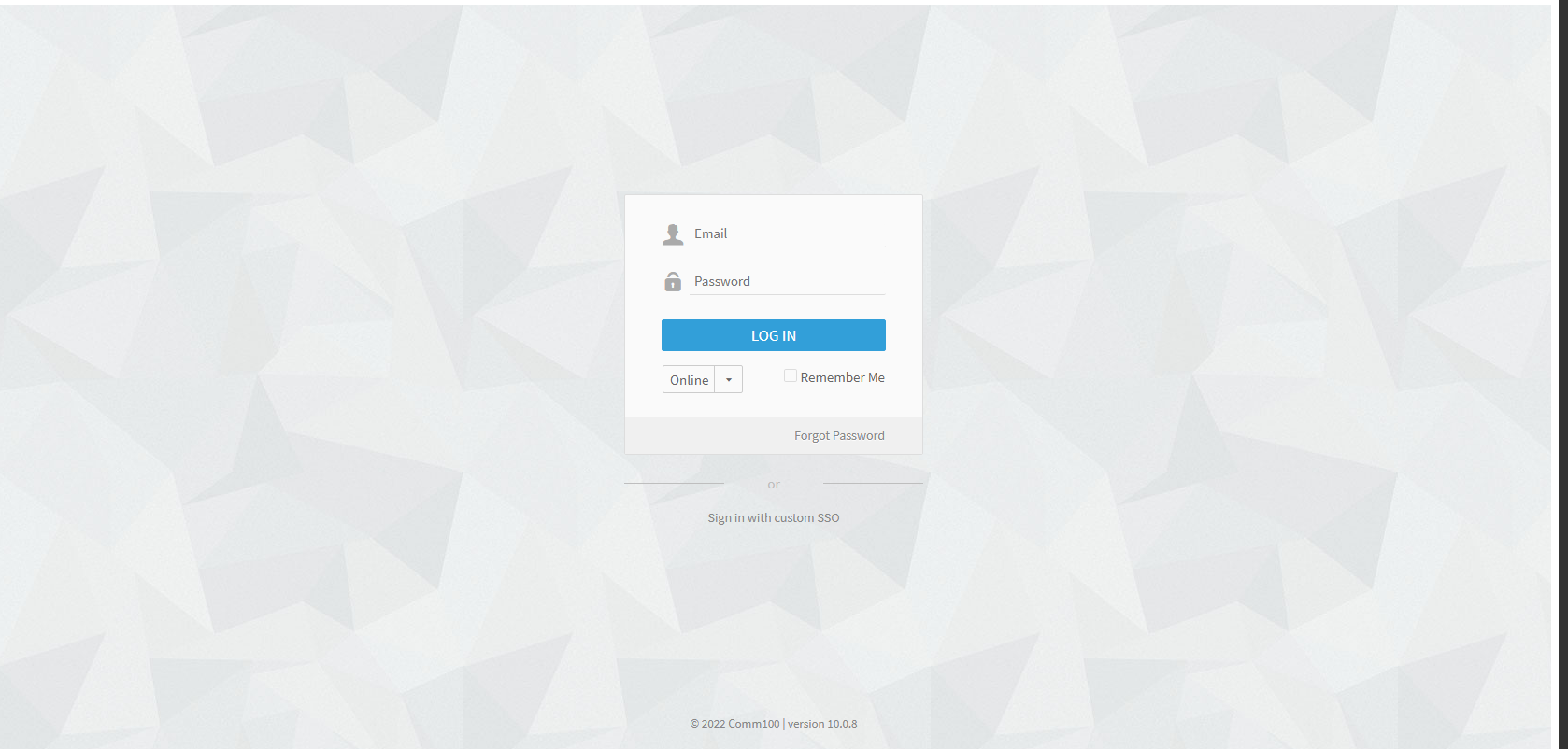
In the above code we defined that the div size is 100% * 800px of the entire window. You can control the position and size displayed for agent console by controlling the div position and size.
## Advanced
| Name | Type | Required | Default | Description |
| --- | --- | --- | --- | --- |
| appId | guid | no | | The id of the app. [How to get the id of app?](/docs/part-1-preparation-1) |
| siteId | number | yes | | The id of the site. |
| entry | string | no | `visitors` | Available options: `visitors`, `chats`, `agents`, `ticket` |
| container | HTMLElement | yes | | The container where agentconsole is rendered. |
The client provides an interface between your app and the host application. The client gives you methods to interact with the Apps framework (Click [here](/docs/embeddable-api-agent-console) to get more information). Below is an example:
```
agentconsole.init().then((ac) => {
ac.on('agentconsole.chats.chatStarted', (args) => {
const chat = args.data;
});
ac.on('agentconsole.chats.chatEnded', (args) => {
const chat = args.data;
});
ac.get("currentAgent").then((result) => {
const data = result.data;
console.log(`Current agent chats: ${data.chats}`);
});
ac.set('currentAgent.status', 'Away');
ac.set('currentAgent.status', 'Online');
ac.set("agentconsole.navBar.select", "tickets");
ac.set("agentconsole.navBar.select", "visitor");
ac.set("agentconsole.navBar.select", "agent");
ac.set("agentconsole.navBar.select", "chat");
ac.do("agentconsole.preference.show", "chat");
ac.do("agentconsole.preference.show", "tickets");
ac.do("agentconsole.preference.show", "general");
});
```